

Key takeaways
-
Lawyers use Claude to draft, summarize, review contracts, and spot issues, but it does not replace legal research tools or attorney review.
-
Standard Claude knows only what a lawyer shares in a conversation, Claude Legal Solutions adds legal-specific plugins and integrations, and an MCP connector lets Claude read live data from other applications.
-
Cowork delegates multi-step jobs, Skills save a task method, and Plugins package a full workflow, while Claude Code builds software and is rarely needed by lawyers.
-
Lawyers should choose a plan with strong data terms, follow ABA Formal Opinion 512, set a firm AI policy, and check every output and citation before relying on it.
-
The MyCase MCP connects Claude to live firm data. The read-only connector follows each user's MyCase permissions, comes with all paid MyCase subscriptions, and requires a Claude Team or Enterprise plan.
Claude has become an everyday tool for a growing number of attorneys. According to the 8am™ 2026 Legal Industry Report , 69% of legal professionals personally use general-purpose generative AI tools such as ChatGPT, Google Gemini, or Anthropic’s Claude for work . It can be used to draft a letter, sort through a stack of records, or check a contract for anything unusual. And more and more, it can connect directly to the systems your firm already works in.
This guide walks through what Claude is, how it compares to other AI tools, and how lawyers are using it day-to-day. It also covers how to protect client confidentiality along the way, and introduces the newest development for 8am™ MyCase users: a direct connection between Claude and your practice management data.
What is Claude AI for lawyers?
Claude is an AI assistant built by Anthropic. You type or upload something, such as a contract, a deposition transcript, or a set of case notes, and Claude responds in plain language. Lawyers tend to like it for long-document work and for writing.
Claude is a general-purpose tool. It isn’t a legal research database, and it doesn’t “know” your cases unless you give it that context, whether you paste it in or connect Claude to the systems where your firm’s information lives. What it does well is the thinking layer of legal work: summarizing, comparing, drafting, spotting issues, and restructuring information. That applies as much to running your practice as to writing documents.
Lawyers often use Claude to prepare for client meetings, keep cases moving, track deadlines and open tasks, and stay on top of billing and collections. Think of it as a fast, tireless junior colleague whose work always needs your review, one who can help with almost any part of your day, not just the writing.
Claude legal solutions vs. Claude vs. Claude with MCP
Claude comes in a few different configurations, and they're often mistaken for one another. Here's how each one works and when it makes sense.
Claude is the standard assistant at Claude.ai . You paste in text or upload files and ask for help. It works for anyone, and anything it knows about your matter is whatever you give it in that conversation.
Claude Legal Solutions is Anthropic's offering aimed at legal teams. According to Anthropic's legal page , it includes practice-area plugins (commercial, corporate, IP, litigation, and more) that can be configured to your playbook and house style. It also covers integrations with tools such as iManage, NetDocuments, DocuSign, Ironclad, and Thomson Reuters, as well as Claude for Word and Outlook. Anthropic positions it as enterprise-grade, with audit trails and no training on your data by default on Team and Enterprise plans.
Claude with an MCP (Model Context Protocol), is the connector layer. An MCP connector lets Claude securely connect to another application, so it can pull data from that application and, depending on how the connector is built, take action in it. When the software you already use has an MCP connector, Claude can answer questions from your live data instead of from whatever you pasted in. That’s the idea behind the MyCase MCP , covered below. Its first version is read-only, so Claude retrieves and analyzes your MyCase data without making any changes to your account.
In short, Claude knows what you tell it. Claude Legal Solutions adds a legal-specific setup. MCP lets Claude see the systems where your firm's work lives.
Claude vs. ChatGPT for lawyers
If you're deciding between these two common AI tools , it's worth knowing that neither one is the right answer for every lawyer or every task. Some firms use both side by side. A few general differences can help you choose. In general:
-
Claude is often preferred for long-document analysis, careful instruction-following, and drafting tone. On connectors, Claude uses MCP, an open standard, to link to outside applications. You can add connectors from Claude’s directory or set up custom ones, and once connected, Claude can pull live data from those systems into a conversation through an MCP.
-
ChatGPT has a broad ecosystem of integrations and tools, and many people are simply more familiar with it. It also offers its own connectors to common apps such as cloud storage and email, so it can reference files and data from those sources. The specific apps available, and whether a legal practice management connector exists, vary by plan and change often.
Whichever you pick, the criteria that matter for law firms are the same: data-handling terms, whether the tool connects to your practice management system, and how you verify its output.
Learn more about how to effectively use AI in your practice at our AI for law firms resource center .
Cowork, Code, Skills, and Plugins: What's the difference?
Claude's product names can be confusing. Here's the plain-English version, with lawyer-specific uses:
-
Claude Chat is the everyday conversation interface at Claude.ai and in the Claude app. You type or upload something, such as a contract, a deposition transcript, or a set of case notes, and go back and forth with Claude until you have what you need. It’s the best place to start. Legal use: “Here’s my draft demand letter. Tighten it up and flag anything that sounds too aggressive for a first outreach.”
-
Claude Cowork is for delegating multi-step tasks. Instead of chatting back and forth, you hand Claude a job and come back when it's done. It runs in the Claude desktop app and can work with files on your computer. Legal use: "Review these 40 vendor agreements and build a table of termination and indemnification terms."
-
Claude Code is a coding tool that runs in a terminal. Most lawyers don't need it, and you don't need a technical background to practice law with Claude. The exception is the occasional lawyer who wants to build something custom. Anthropic highlights a Quinn Emanuel partner who built an internal litigation platform on Claude despite having little coding experience.
-
Claude Skills are reusable instructions you save so Claude does a task your way every time. Legal use: a "demand letter" skill that bakes in your firm's structure, tone, and required sections, so you don't re-explain it each time.
-
Claude Plugins bundle skills, connectors, and commands into a package for a specific kind of work. Legal use: a contract-review plugin configured with your risk tolerances and fallback positions.
A simple way to remember it: Cowork delegates the job, Skills teach the method, Plugins package a whole workflow, and Code is for building software.
What can lawyers use Claude for?
You don't need to overhaul your practice to get value from Claude. Most lawyers begin with everyday work like drafting, reviewing, and summarizing, and the sections below show how to approach each.
Contract review and redlining
Upload the agreement and tell Claude what you're looking for: unusual indemnification language, missing provisions, deviations from your standard terms. Give it your playbook or preferred positions for sharper results. If you use Word, Claude for Microsoft 365 can suggest edits with tracked changes right in the document.
Legal research support
Use Claude to frame issues, outline the analysis, identify follow-up questions, and summarize the sources you provide. Don't treat it as a source of citations—run your authorities through your normal research tools and confirm every citation yourself.
Drafting letters, motions, and memos
Give Claude the facts, the audience, the goal, and the tone, then ask for a first draft. Edit hard. The strongest workflow is to let Claude produce a rough version fast and spend your time on judgment and polishing.
Summarizing depositions, records, and long files
Upload the transcript or file and ask for a chronology, a list of admissions, or a summary organized by issue. Ask Claude to point to where each item appears in the document so you can check it quickly.
Client communication
Ask Claude to rewrite a dense legal explanation in plain English at an eighth-grade reading level. It's also useful for drafting status updates and for softening the tone of difficult messages.
Intake and case preparation
Paste the intake notes in and ask Claude to identify any missing information, flag potential conflicts or limitations to check, and draft a list of follow-up questions for the client.
Firm operations and reporting
Billing, workload, deadlines, and collections are where AI often saves the most administrative time, and it's where connecting Claude to your case management data pays off. That's next.
Sample Claude prompts for lawyers
Using AI well is a skill, and AI skills for lawyers are worth building. To get started try copying these and filling in the brackets. Better inputs make better outputs, so be specific about role, audience, and format. The first five work in any Claude conversation. The MyCase prompts at the end will only work once the connector is set up.
Contract review: "You're a [commercial/employment/real estate] attorney reviewing this agreement on behalf of [client]. Identify provisions that are unfavorable to my client, missing, or unusual. Present them in a table with the clause, the concern, and suggested revised language."
Legal research framing: "I'm researching [issue] in [jurisdiction]. List the elements likely at issue, the questions I should research, and the arguments each side would make. Don't cite cases. I'll verify authorities separately."
Drafting: "Draft a [demand letter/engagement letter/motion outline] for [facts]. Audience: [recipient]. Tone: firm but professional. Keep it under [length]. Flag any facts you assumed."
Deposition prep: "Based on this transcript, list inconsistencies in the witness's testimony, with page and line references, and suggest follow-up questions."
Client communication: "Rewrite this explanation of [topic] for a client with no legal background. Use plain English, short sentences, and a reassuring tone."
With the MyCase MCP
-
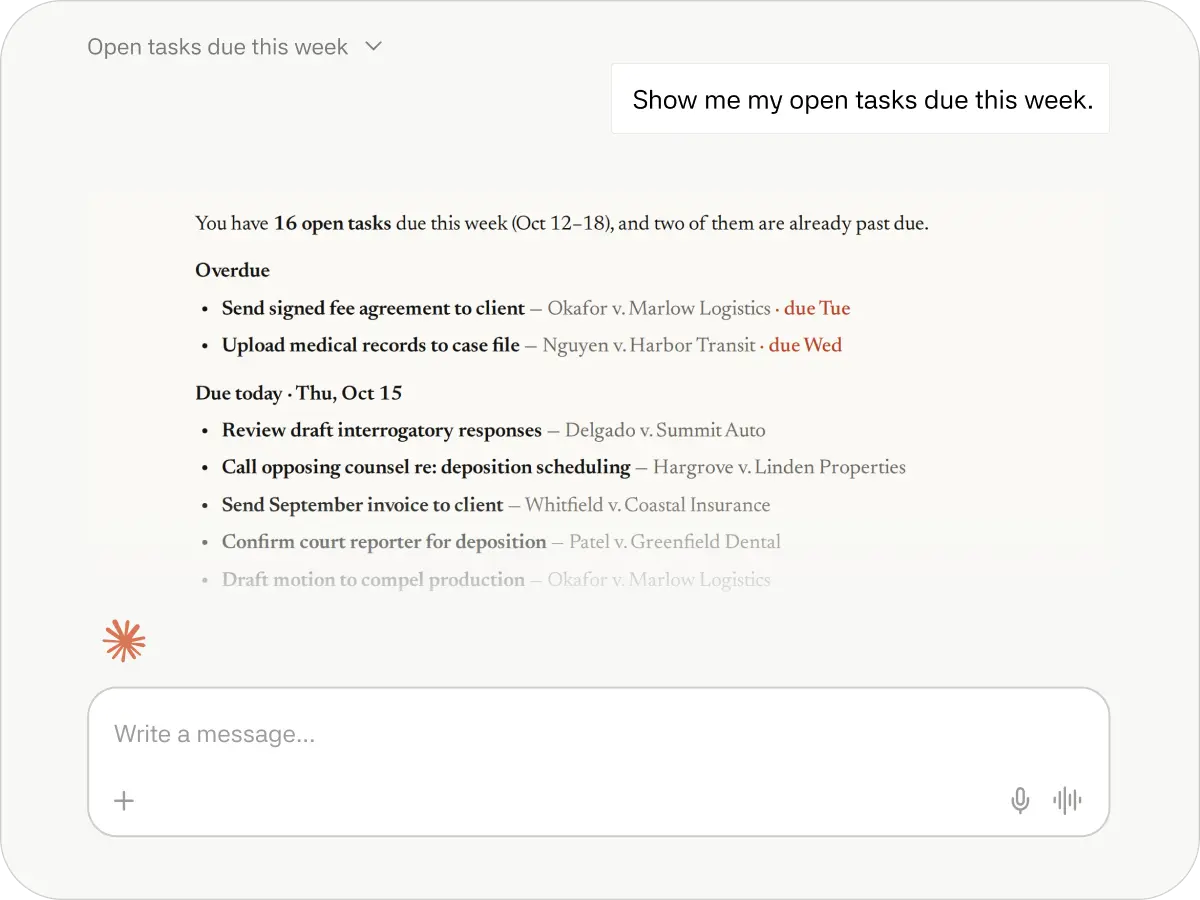
Find things fast. "Show me my open tasks due this week." / "Search my documents for anything mentioning 'settlement agreement'."
-
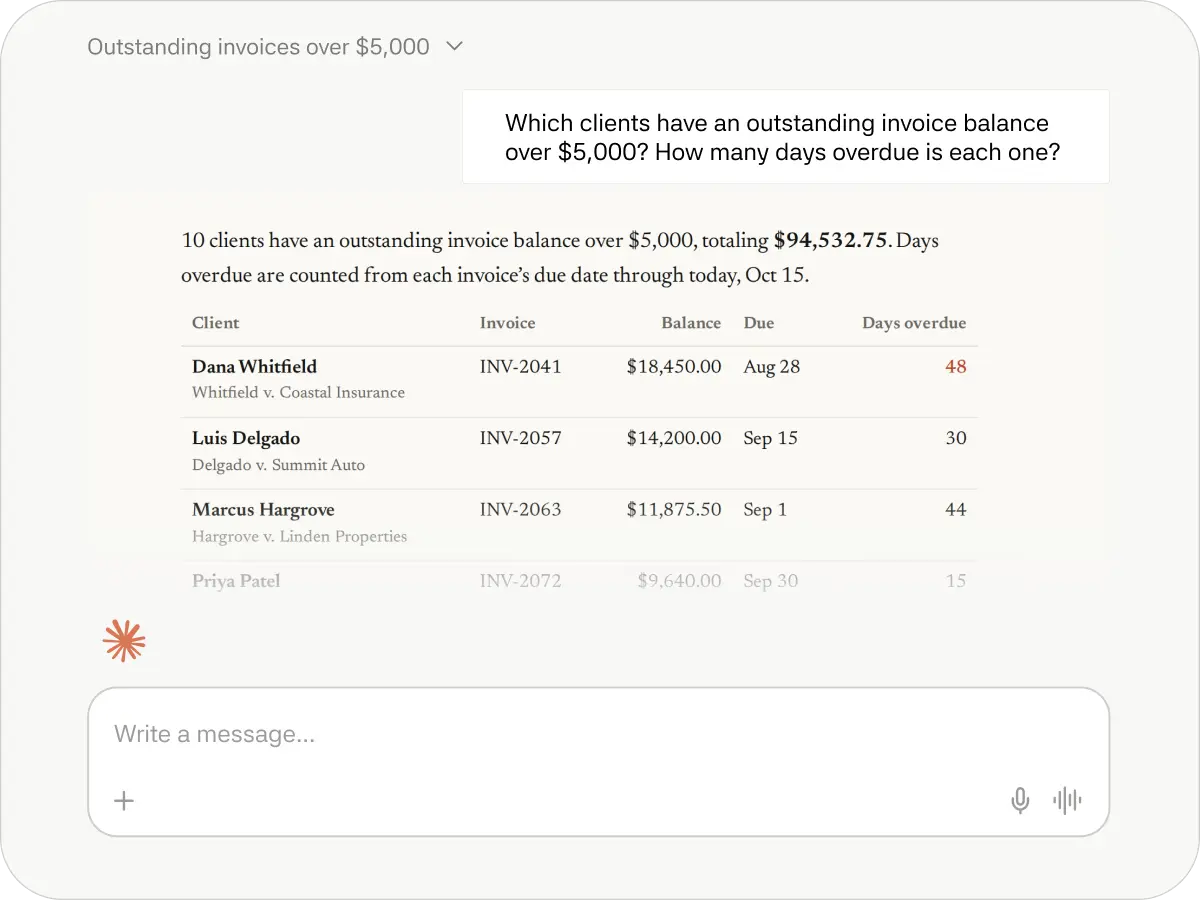
Filter and summarize. "Which clients have an outstanding invoice balance over $5,000? How many days overdue is each one?"
-
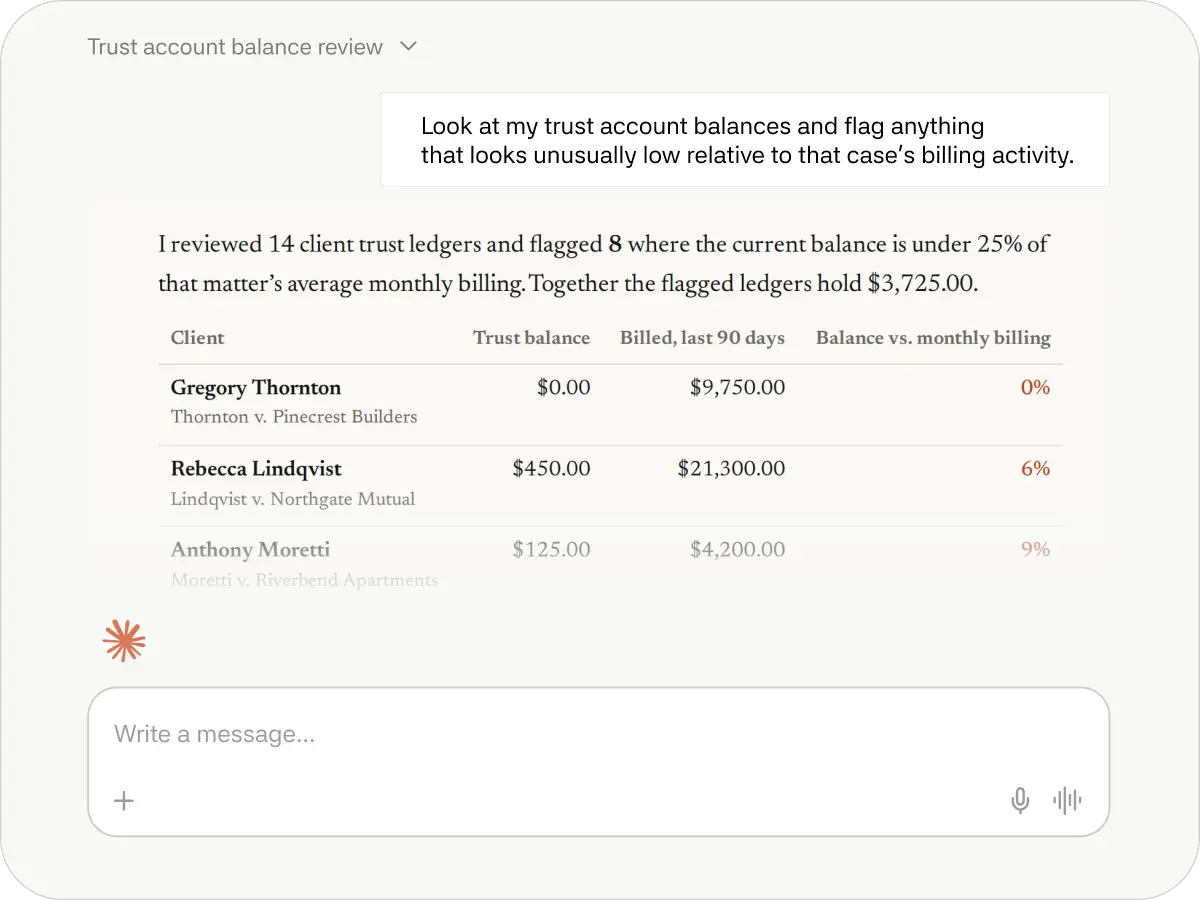
Connect the dots. "Look at my trust account balances and flag anything that looks unusually low relative to that case's billing activity."
-
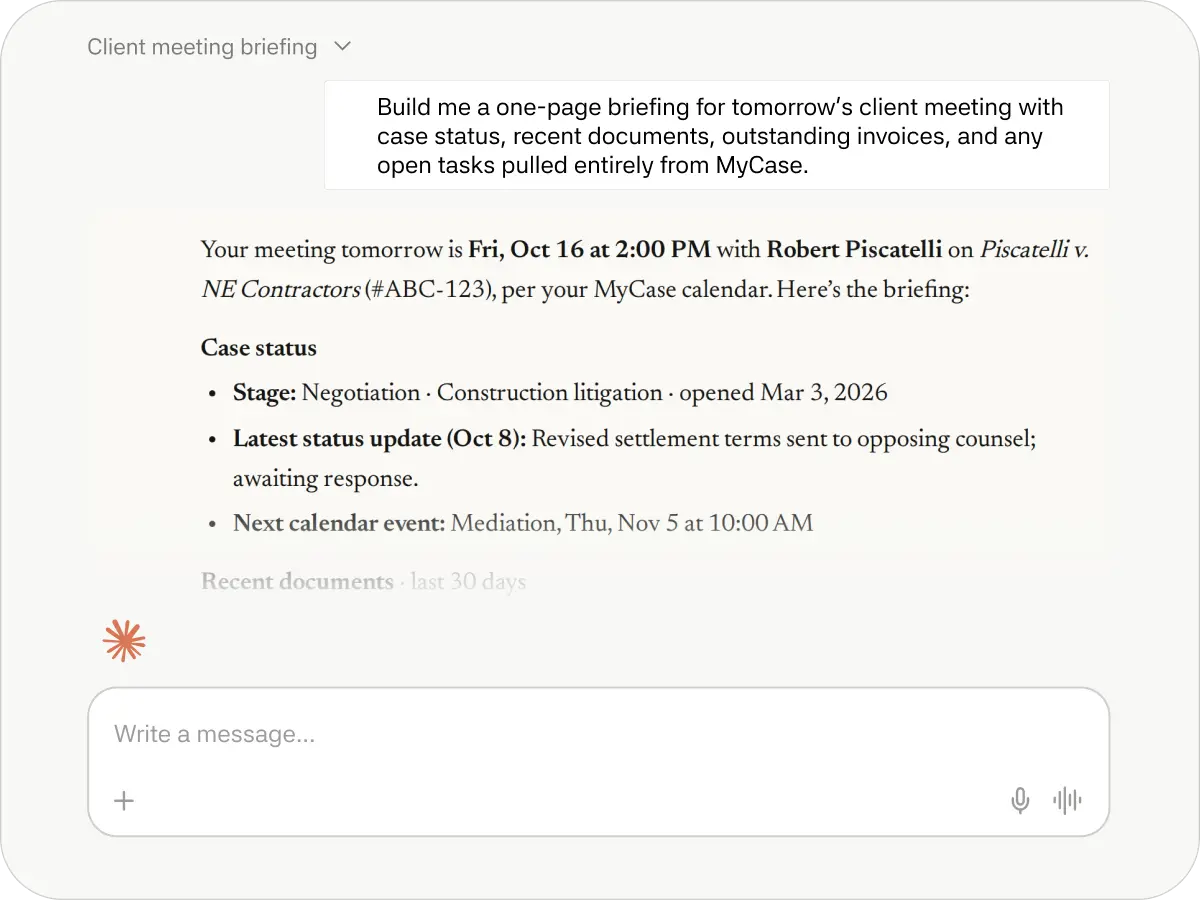
Prepare and report. "Build me a one-page briefing for tomorrow's client meeting with case status, recent documents, outstanding invoices, and any open tasks pulled entirely from MyCase."
Protecting confidentiality and meeting ethical duties in Claude
Your ethical obligations as a lawyer don't change. Before you put information into any AI tool, make sure you've handled the basics:
-
Choose the right plan: Consumer and business plans have different data-handling terms. Anthropic's terms of service state that Team and Enterprise plans don't train on your data by default. Read the terms and check your privacy settings.
-
Follow your duties: ABA Formal Opinion 512 addresses lawyers' obligations when using generative AI , including competence, confidentiality, and supervision. Check your jurisdiction's guidance as well.
-
Verify everything: AI can produce confident-sounding errors, including fabricated citations. You're responsible for the final work product.
-
Set a firm policy: Decide what can and can't go into AI tools, and train your staff on it.
-
Minimize data: When you can, anonymize details that aren't needed for the task.
Claude and MyCase: Ask your practice management data anything
Most Claude use cases start with you pasting information in. The MyCase MCP flips that around: Claude reads your MyCase data and answers questions directly. MyCase is the first official Claude MCP connector for legal practice management.
What that means in practice:
-
No exports or copy-paste. Answers reflect what's currently in MyCase, not what was in last week's spreadsheet.
-
Read-only by design. The connector retrieves data on request. It doesn't change anything in your account.
-
Governed by your permissions. Claude can only access what the signed-in user is already allowed to see in MyCase.
-
Included in all paid MyCase plans. It does require a Claude Team or Enterprise plan, which keeps client data confidential and, by default, doesn't train models on it.
Simple lookups come back quickly. Cross-record questions take longer, because Claude has to analyze what it pulls, not just retrieve it.
Put reporting on autopilot. In the Claude desktop app, you can schedule a recurring task through Cowork or the Schedule page. Describe the report, set the cadence, and Claude runs it automatically.
For example: "Every weekday at noon, run my productivity report for the previous day: How much time did I track on each case I worked on? Which active cases had zero time tracked? What's my breakdown of billable vs. non-billable hours? What's the billed dollar value of my tracked time, and how much of it was billable?"
Ready to ask your practice management data a question? The MyCase MCP is included in every paid MyCase plan and takes just a few minutes to connect.
Learn more about the MyCase MCP to see what Claude can do with your firm’s live data, then follow the MyCase MCP support article or find the connector in Claude’s marketplace to get started.
About the author

Mary Elizabeth Hammond is a Senior Content Strategist and Blog Specialist for 8am, a leading professional business solution. She covers emerging legal technology, financial wellness for law firms, the latest industry trends, and more.